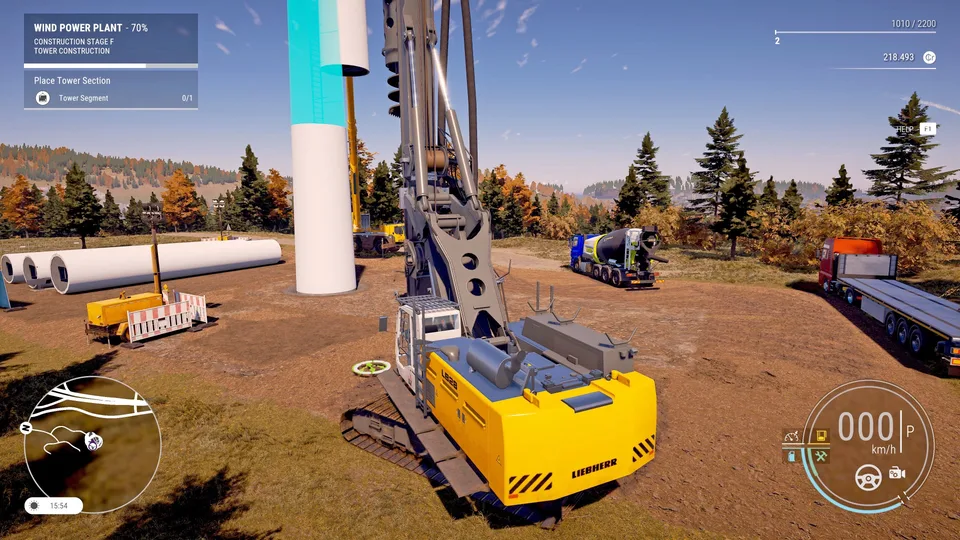
Master Construction Simulator Keyboard Controls: Pro Guide
Master Construction Simulator keyboard controls with our comprehensive guide. Optimize your workflow, boost efficiency, and dominate every project today.
Published: Construction Simulator Wiki Editorial Team
Table of Contents
Whether you are pouring concrete for a massive skyscraper or excavating soil for a residential foundation, efficient input management is the difference between a profitable contract and a logistical nightmare. Mastering your Construction Simulator keyboard controls is the first step toward transforming from a novice operator into a seasoned site manager.
Understanding your keybindings doesn't just save you frustration; it significantly reduces the time you spend navigating menus, allowing you to focus on the precision work that defines the best players. In this guide, we break down everything you need to know about optimizing your interface for peak performance.
Essential Keyboard Controls Overview
If you are coming from a controller or just starting your journey, the sheer volume of bindings in Construction Simulator can be overwhelming. Before you jump into your first heavy machinery, familiarize yourself with these primary input mappings.
Category
Action
Key
Menu
Open Main Menu
ESC
Interaction
Primary Action
Hold G
View
Construction View
V
Navigation
Open Map
M
Quick Select
Slots 1–4
1, 2, 3, 4
Jobs
View Contracts
J
Why Default Keybindings Matter
Most professional players rely on the core Construction Simulator keyboard controls because they are designed to mirror the workflow of real-world heavy equipment operation. By memorizing these shortcuts, you eliminate the need to click through context menus, which saves precious seconds during time-sensitive tasks. According to community reports, players who map their "Construction View" to a toggle setting in the gameplay menu often experience higher accuracy when bulldozing or grading soil.
Advanced Machinery Operation
Operating specialized vehicles like the Palfinger crane or a rotary drill requires a distinct set of inputs. When driving on tracks, the game uses a dual-input system that mimics differential steering.
Driving and Track Control Basics
For those struggling with maneuvering, here is the breakdown of track management:
Function
Key
Left Track Forward
Q
Left Track Backward
Z
Right Track Forward
E
Right Track Backward
C
For arcade-style driving, use the Numpad: 8 for throttle, 2 for brake, and 4/6 for steering. This allows you to navigate tight corners on construction sites with much greater ease.
[!TIP]
Pro-Level Efficiency
Always remember to keep your "Function Modifier" (Left Shift) handy. It allows you to toggle secondary modes for complex arms, such as adjusting the boom length on a concrete pump or tilting a forklift’s carriage.
Optimizing Your Workflow: Tips from the Site
Beyond the technical keybindings, your success depends on how you manage your fleet. Our research shows that players who prioritize specific skill trees and operational shortcuts maximize their profit margins significantly faster than those who play "blind."
Renting vs. Buying Strategy
Early in the game, your capital is limited. Don't waste it on low-usage equipment.
Buy Immediately: Tower cranes and dump trucks. These stay on-site for the duration of most contracts.
Rent When Needed: Asphalt pavers and specialized drills. The rental cost is a fraction of the purchase price, and their utility is highly situational.
Customizing Your Controls for Comfort
If the default layout feels counter-intuitive, you can change your bindings through the settings menu. Press the Right Stick (if using a hybrid setup) or navigate to the 'Controls' tab in the settings. Ensure you delete conflicting quick actions before re-assigning them to your bumpers or d-pad to avoid input lag or erroneous triggers.
Addressing Common Control Errors
Many players report issues with "Quick Selection" conflicts. If you are using a custom profile, ensure your indicators (5 and 6) do not overlap with your camera controls. For a deeper look at specific vehicle logic, visit the official Construction Simulator Steam Page for community-driven optimization guides.
Equipment Type
Key Interaction
Difficulty Level
Excavator
W/S (Boom), A/D (Rotate)
Medium
Tower Crane
W/S (Trolley), A/D (Rotate)
High
Forklift
Arrow Keys (Lift/Tilt)
Low
Managing Multiple Contracts
As you upgrade your company level, you will unlock the ability to manage multiple contracts simultaneously. This requires careful use of the J key to monitor your active job list. Do not fall into the trap of accepting too many small jobs at once; focus on high-yield, long-term projects to keep your cash flow steady.
Frequently Asked Questions (FAQ)
How do I change my Construction Simulator keyboard controls?
Navigate to the "Settings" menu from the main screen, then select "Controls." From here, you can remap almost every interaction to suit your personal playstyle.
Is it better to drive or fast-travel?
In almost all scenarios, fast-traveling for supplies is superior. You pay a negligible fee to move across the map, saving you significant time and vehicle wear, which directly impacts your bottom line.
Why is my excavator arm moving slowly?
You likely need to switch your function mode using the TAB key or check your "Function Modifier" (Left Shift). Ensure you are using the correct inputs for the boom versus the stick; refer to the control table in the "Advanced Machinery" section above.
Can I save my control settings?
Yes, the game saves your custom keybindings to your profile. If you play on multiple systems via Steam Cloud, your preferences should synchronize automatically across your devices.