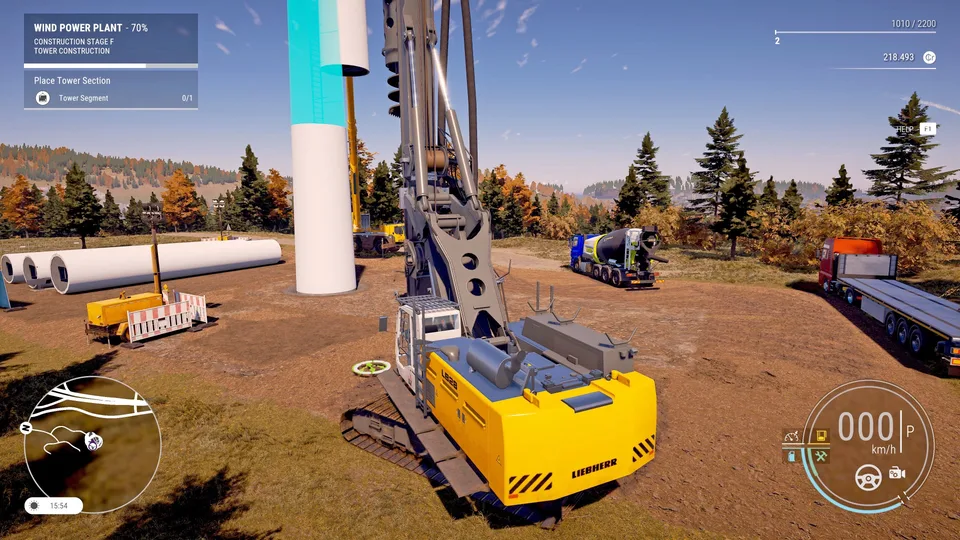
Construction Simulator Keeps Crashing? Essential Fixes Guide
Are you frustrated because Construction Simulator keeps crashing? Discover our expert troubleshooting guide to stabilize your gameplay and get back to building.
Published: Construction Simulator Wiki Editorial Team
Table of Contents
Troubleshooting technical issues in modern simulation games can feel like a project of its own, but when Construction Simulator keeps crashing, you shouldn't let it halt your progress. As players strive to complete complex infrastructure contracts on both the European and US maps, ensuring a smooth, crash-free experience is essential for maintaining productivity and enjoying the deep mechanics developed by weltenbauer. Software Entwicklung GmbH.
This guide is designed to help you resolve stability issues, whether you are dealing with a sudden black screen, a game freeze, or an unexpected exit to the desktop. By following these proven technical solutions, you can optimize your PC environment and minimize interruptions while managing your construction empire.
Verify Your Graphics Drivers and Settings
The most frequent cause for a game crashing is outdated graphics drivers. Since high-fidelity simulations like this one demand consistent performance from your GPU, keeping your drivers current is your first line of defense.
If you find that Construction Simulator keeps crashing, start by navigating to your Device Manager, selecting your display adapter, and checking for updates. Beyond automatic updates, visiting the website of your hardware manufacturer (Nvidia, AMD, or Intel) to perform a clean install of the latest drivers often clears up deep-seated performance bugs.
Step
Action
Why It Helps
1
Device Manager Check
Ensures basic compatibility with Windows
2
Clean Driver Install
Removes corrupted cache/old settings
3
High Performance Mode
Forces GPU to prioritize the game process
Additionally, consider using Windows Graphics Settings to set the game to "High Performance" mode. This tells your system to allocate maximum resources specifically to the application, preventing the operating system from throttling it during intensive tasks like massive earthmoving simulations.
Validating Game Files and Compatibility
Sometimes, the installation files themselves can become corrupted during a patch or an unexpected system shutdown. Steam provides a built-in tool that is highly effective for identifying and replacing these "missing links" in your game directory.
To check your files, go to your Steam Library, right-click on the title, and select Properties. Under the "Installed Files" tab, click "Verify Integrity of Game Files." This process will automatically scan your installation against the master copy on Steam's official server, ensuring that every asset is accounted for and in working order.
Tip
Compatibility Mode
If you are on an older OS, right-click the game executable (.exe), go to Properties > Compatibility, and try running it in Windows 8 mode. Always ensure "Disable fullscreen optimizations" is checked, as this can often stop the game from conflicting with Windows overlay services.
Optimizing System Performance and Background Apps
Background processes often consume CPU and memory, which can lead to instability. If Construction Simulator keeps crashing, you may have too many startup apps competing for system resources.
Open your Task Manager (Ctrl + Shift + Esc) and check the "Startup" tab. Disable unnecessary applications that launch automatically when you turn on your computer. Furthermore, running an "sfc /scannow" command in an elevated Command Prompt can repair core Windows system files that might be causing broader stability issues across your software library.
Common Performance Indicators
Issue Type
Symptom
Immediate Action
Memory Bottleneck
Game freezes during loading
Close background browsers/apps
GPU Instability
Black screen or flickering
Lower graphical settings
Corrupted Save
Stuck at splash screen
Use the auto-restore UserData feature
Addressing In-Game Stability and Save Data
Community reports indicate that sometimes a corrupted UserData file is the culprit when the game refuses to advance past the initial startup screen. The developers have implemented a safeguard; if the game detects this, it will offer to recreate the data. Always ensure you have a backup of your save files in a separate folder before allowing this.
Furthermore, if Construction Simulator keeps crashing during specific missions, check your internet connectivity. Since the game features complex multiplayer synchronization, network drops can occasionally trigger a crash. Ensure that your firewall is set to allow the game access to both public and private networks.
Essential Software Dependencies
While the game installer usually handles these, it is good practice to manually verify your dependencies if you've recently performed a clean Windows installation.
DirectX: Ensure you have the latest runtime libraries installed.
Visual C++ Redistributables: Download the latest versions for both x86 and x64 architectures.
Windows Updates: Keeping your OS updated ensures that critical API security patches are in place.
Installing these packages can resolve "DLL not found" errors or sudden closing issues that occur the moment you hit the "Launch" button.
FAQ: Solving Stability Issues
Q: Why does Construction Simulator keep crashing when I join a multiplayer session?
A: This is often related to synchronization errors or outdated network settings. Ensure your firewall allows the application and try hosting a session with "Crossplay" disabled to see if it improves stability.
Q: Does disabling fullscreen optimizations help performance?
A: Yes, many players report that checking "Disable fullscreen optimizations" in the compatibility tab prevents the Windows UI from interrupting the game's rendering process, which significantly reduces stuttering and crashes.
Q: Are there known issues with custom save files?
A: According to community reports, if your game frequently hangs during loading screens, your save file may be corrupted. Use the game's built-in mechanism to recreate the UserData folder, which is designed to recover from these specific instances.
Q: Will reinstalling the game delete my progress?
A: Steam Cloud saves usually retain your company progress, but it is always safer to manually copy your save directory located in your local app data before uninstalling to ensure your hard-earned progress remains safe.