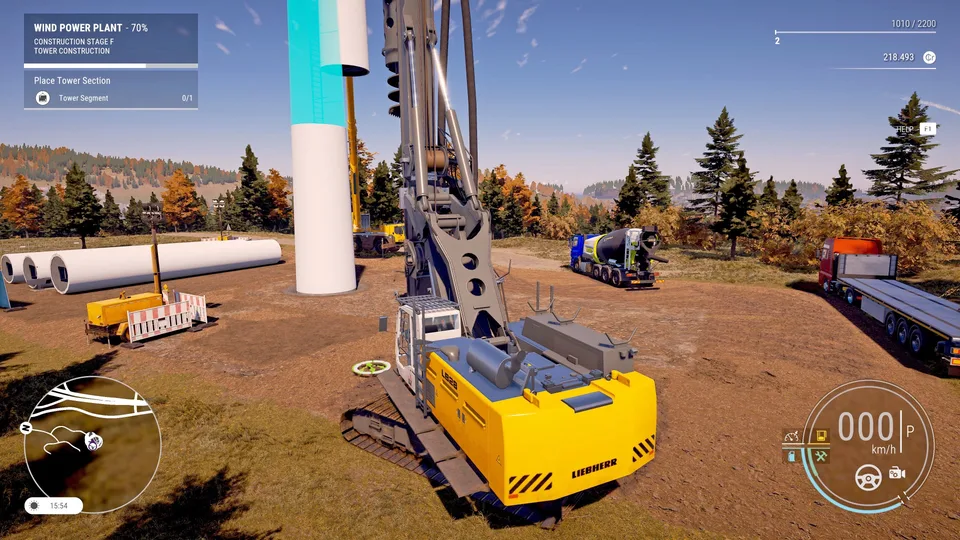
How to Clear Area in Construction Simulator: Pro Tips & Fixes
Struggling with the 'Clear Area' task in Construction Simulator? Learn exactly how to reset your site, troubleshoot bugs, and progress your contracts smoothly.
Published: Construction Simulator Wiki Editorial Team
Table of Contents
Master the "Clear Area" Objective in Construction Simulator
Navigating complex contracts in Construction Simulator can sometimes feel like a real-world engineering challenge, especially when a mission halts because of an elusive "Clear Area" requirement. As a player, there is nothing more frustrating than having your progress stalled by a task that seems vague or, in some cases, bugged. Whether you are working on a massive residential project or a small landscaping job, understanding how to properly vacate your construction site is essential for seamless gameplay.
In this guide, we break down exactly what the game expects from you when a "Clear Area" prompt appears. By mastering these site management techniques, you can avoid common pitfalls and ensure your equipment is always positioned for maximum efficiency. Don't let a stalled contract ruin your construction empire; follow these steps to keep your projects moving on schedule.
Understanding the "Clear Area" Mechanism
The "Clear Area" objective is primarily a safety and logic mechanism designed by the developers to prevent vehicles from clipping into new structural spawns or falling into terrain pits. When a contract stage transitions, the game engine creates a "safe zone" around the project site. If any entity—your player character or a piece of heavy machinery—remains within this defined boundary, the game cannot trigger the next mission phase.
Why is this important? Failing to clear the area can result in vehicles being launched into the air when the game spawns new structures, or getting stuck in building foundations. According to developer insights shared with the community, this protocol is vital for maintaining the physical integrity of the map during major transitions.
Why Your Site Might Not "Clear"
Proximity Issues: The game requires you to move your final vehicle at least a block or so away from the active work site.
Ghost Equipment: Sometimes, a vehicle is technically "on site" even if it's parked just outside the concrete boundary.
Worker Interaction: If you are actively operating a machine, the game may struggle to register the area as empty.
Step-by-Step Guide to Clearing Your Construction Site
When you receive the prompt, follow this systematic approach to ensure the game recognizes that the site is vacated. Many players mistakenly believe that simply moving the vehicle off the main slab is enough, but often, the required distance is greater than expected.
Standard Clearing Procedure
Step
Action
Why
1
Finish primary task
Complete the final shovel or delivery task.
2
Move machines
Drive all vehicles at least 50-100 meters away.
3
Exit the vehicle
Get out of the machine to reset character collision.
4
Check the UI
Click the task icon to see if a specific vehicle is listed.
If you follow these steps and the prompt remains, it is likely that one piece of equipment is still lingering in the "active" zone. You can often identify the culprit by clicking the task description in your mission menu; the game will frequently highlight or list the vehicle causing the blockage.
Troubleshooting Common Bugs and Glitches
Even if you follow the rules, Construction Simulator is a complex simulation that can occasionally encounter synchronization errors. Community reports have highlighted that specific missions, such as the "Single Family Home with Wood Panels," can sometimes experience logic loops.
If you are absolutely certain that you have cleared the area and the task still refuses to trigger, consider these troubleshooting steps:
Tip
Proactive Site Management
Always park your service vehicles and spare machinery in a dedicated staging area well away from the construction slab to avoid constant "Clear Area" prompts during project transitions.
How to Force a Reset
Fast Travel: Sometimes, moving a "stuck" vehicle to the nearest shop or home base via the map menu will clear the game's internal flag for that vehicle.
Reset to Home Base: If a machine is stuck in a pit or a building shell, use the official in-game reset function.
Client/Server Sync (Multiplayer): If playing in a group, ensure the host is not the one causing the collision. Have all players exit the site perimeter simultaneously.
Data Comparison: Construction Site Clearing Methods
Effectiveness varies depending on the job scope. Using "Simplified Leveling" or high-difficulty settings can change how the game interprets site boundaries.
Method
Reliability
Best Used For
Manual Driving
High
Standard house projects
Fast Travel Reset
Very High
When a vehicle is clipped/stuck
Complete Re-load
Medium
Resolving critical mission soft-locks
Map-based Vehicle Recall
High
Clearing multiple machines quickly
Essential Tips for Efficient Contract Completion
Efficiency is the lifeblood of your construction company. To ensure you aren't constantly fighting the "Clear Area" mechanic, adopt these professional habits early in your career.
Staging Areas: Create a designated parking zone near the entrance of every construction site. This keeps the work zone clear for your concrete mixers and excavators.
Task Management: Check the mission objectives before you bring all your heavy machinery onto the site. Only bring what you need for the current phase.
Listen to the Community: Veteran players often share specific spots on the map that are prone to terrain bugs. If you notice a specific site always causes issues, report it to the official Construction Simulator support forums.
By treating site organization as a core part of the gameplay, rather than an afterthought, you spend more time driving the machinery you love and less time fighting the mission logic.
Frequently Asked Questions (FAQ)
Q: Why does the "Clear Area" warning persist even when I leave the site?
A: Usually, one vehicle is still too close to the boundary. Check your active job UI; it will often list the specific machine causing the blockage. Try driving it a full block away from the construction site.
Q: Can I use the fast-travel feature to clear the site?
A: Yes, absolutely. If a vehicle is stuck or just being stubborn, using the map to fast-travel it to your home base is the most effective way to clear the area instantly.
Q: Is "Clear Area" a common bug?
A: It is more of a safety feature than a bug. However, if your vehicles are consistently flying into the air, ensure you have updated to the latest patch, as developer updates have significantly improved terrain physics and vehicle collision logic.
Q: Does multiplayer affect the "Clear Area" requirement?
A: In multiplayer, the site must be clear of all players and all vehicles owned by the team. Coordination is key! If one player stays on the site to watch, the mission will not progress.