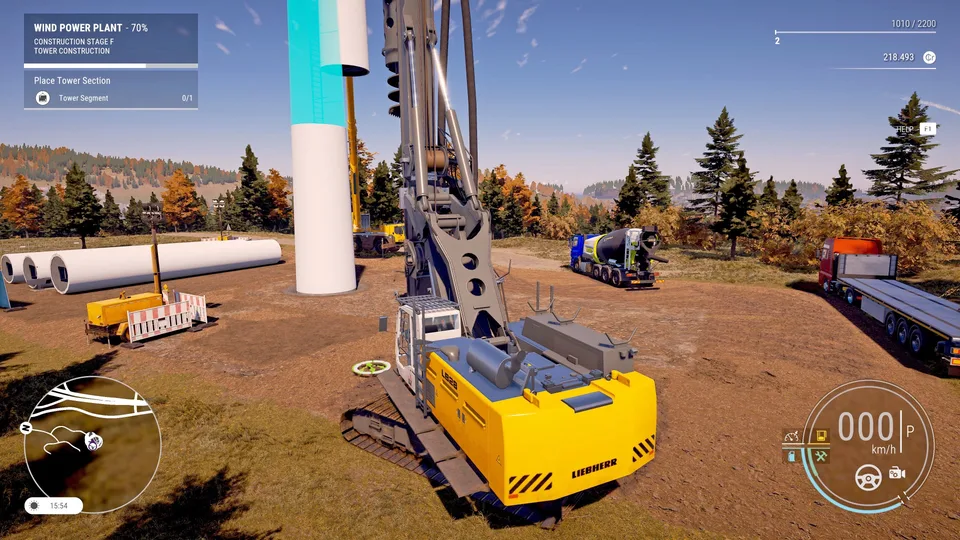
Construction Simulator DLC Not Working? Here is How to Fix It
Are you finding your Construction Simulator DLC not working? Discover our step-by-step troubleshooting guide to unlock your missing content and campaigns.
Published: Construction Simulator Wiki Editorial Team
Table of Contents
Have you recently purchased expansion packs for your favorite heavy machinery game only to find that your Construction Simulator DLC not working as expected? It is a common frustration for many players when new vehicles or maps fail to appear in-game, but in most cases, the issue is simply a matter of knowing where to look in the menus.
Understanding how to correctly activate and access your additional content is essential for getting the most out of your construction company. This guide will walk you through the common pitfalls and official solutions to ensure your game files are correctly configured and your new missions are ready to play.
Why Your DLC Content Might Seem Missing
When a player reports that their Construction Simulator DLC not working, it is rarely due to a corrupted file. Instead, the game’s complex menu structure often hides new content behind specific selection screens. Because the game features multiple map regions and distinct campaign types, developers intentionally segregate DLC to prevent cluttering your primary save file.
It is important to remember that different types of DLC have different activation requirements. For instance, a vehicle pack will not automatically place new machines in your garage; you must visit the in-game dealership to acquire them with your hard-earned currency.
Categorizing DLC Activation Methods
To help you navigate these settings, we have categorized how different DLC types are implemented within the game environment.
DLC Category
Activation Location
Requirement
Vehicle Packs
Vehicle Traders Store
Purchase with in-game money
Campaign DLCs
Menu > Jobs > Offers > Campaign
Manual selection
Map DLCs
New Game/Profile Setup
Select map at start
Cosmetic Packs
Character Editor
Automatic availability
Step-by-Step Troubleshooting for Missing Content
If you are certain your content is not appearing, follow these logical steps to verify your installation. Many players find that the solution is as simple as restarting the game after a fresh install or navigating to the correct sub-menu.
1. Verify Your Steam Installation
First, ensure that Steam has actually downloaded the content. Go to your Steam Library, right-click on Construction Simulator, select Properties, and check the "DLC" tab. Ensure that the checkmark next to your purchased DLC is active. If it is unchecked, click it to initiate the download.
2. Check the Campaign Menu
A frequent point of confusion is the campaign selection screen. According to community reports, players often look for new jobs in the general job board. However, DLC-specific missions are strictly located under the "Campaign" sub-menu.
Tip
Navigating to DLC Campaigns
Press 'M' to open your menu, navigate to Jobs > Offers > Campaign > DLC. This is where you will find the specific missions associated with your expansions.
3. Understanding Map-Specific DLC
Some larger expansions, such as the Spaceport campaign, are tied to specific map instances. If you are playing on the standard American map and expecting to see Spaceport content, you will not find it. You must create a new company profile and specifically select the relevant map (e.g., "Spaceport - South America") during the initial setup process.
Managing Your Construction Simulator Experience
To maintain a healthy game state, it is recommended to keep your software updated to the latest version provided by weltenbauer. Software Entwicklung GmbH. If you have verified your files and the content is still missing, consider the following checklist.
Common Player Errors vs. Game Bugs
Issue
Typical Cause
Recommended Action
DLC not showing in menu
Incorrect navigation
Check the "Campaign" sub-menu
Vehicles missing from garage
Not yet purchased
Visit the Vehicle Trader
Map content missing
Playing wrong map
Start a new game on the DLC map
Files appear corrupted
Interrupted download
Verify integrity of game files
Advanced Fixes: File Verification
If you have tried the steps above and are still struggling with the Construction Simulator DLC not working, performing a file integrity check is the next logical move. This process scans your local installation folder and replaces any missing or damaged files that may prevent the game from recognizing your DLC licenses.
Open your Steam Library.
Right-click Construction Simulator.
Select Properties > Installed Files.
Click Verify integrity of game files.
Wait for the process to complete and restart the game.
This process is highly effective for resolving issues where the game client fails to "see" the DLC, even if the files are technically present on your hard drive.
Frequently Asked Questions
Q: Why can't I find my new vehicles after buying the DLC?
A: New machines are not added to your inventory automatically. You must head to the in-game vehicle trader, where they will be available for purchase using your in-game currency.
Q: I bought a Campaign DLC, but it doesn't appear in my current save?
A: Some campaigns require you to select a specific map upon starting a new company. Always check the map requirements in the DLC description.
Q: Is there a way to force the DLC to install?
A: If the DLC is not installing, verify your game files through Steam. If the problem persists, ensure your Steam client is updated to the latest version.
Q: Why is my Construction Simulator DLC not working after a reinstall?
A: Ensure that you are logged into the same Steam account that purchased the DLC. Additionally, check the "DLC" tab in the game's properties menu to confirm the content is checked for installation.